How to Request a Password
Step 1 -
Type in your email address
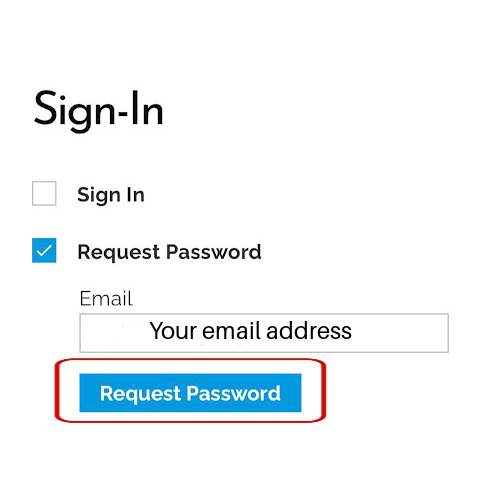
Select “Request Password”
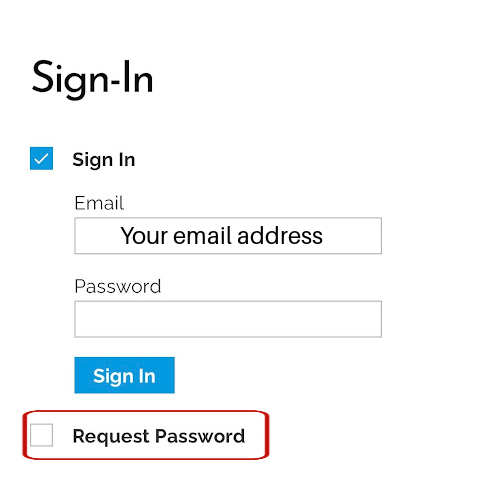
Select “Request Password”
Step 2 -
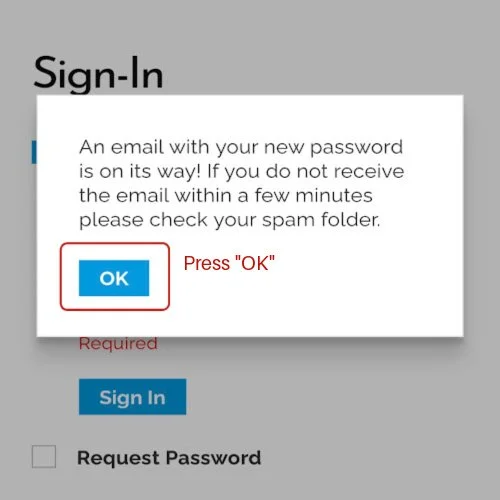
You will see a message that your new password has been emailed to you.
Press “Ok” and go to your email account.
Step 3 -
Congratulations! You have your own unique password.
Write it down where you can easily refer to it.
Step 4 -
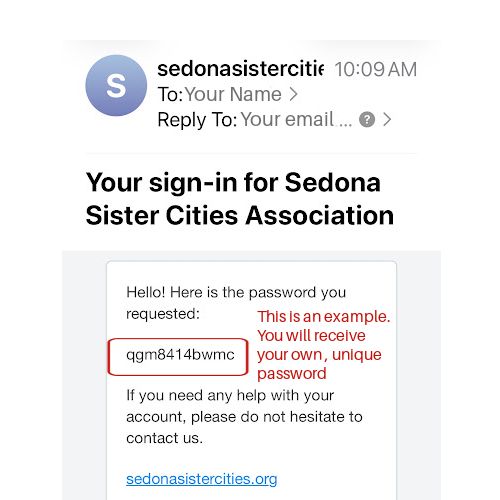
Use this password to:
Renew your membership
Edit your profile
Change your password to one that is easier for you to remember.
View your event and payment history.
How to Renew Your Membership
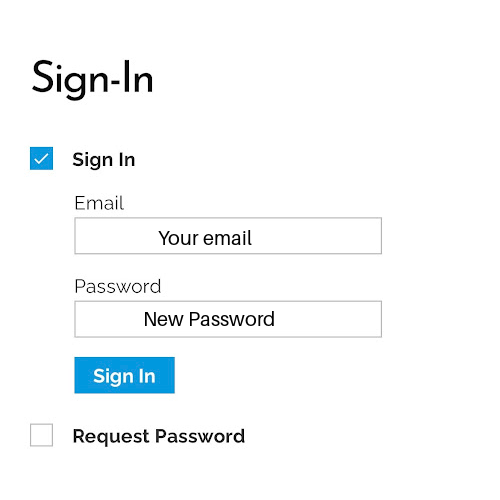
Sign-In using your email address and password.
Step 1 -
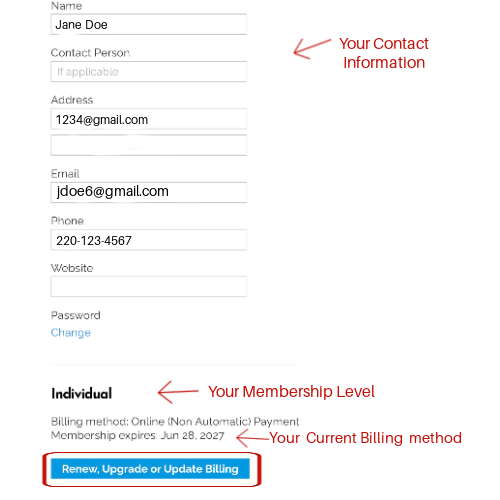
You will see your “Contact Information”. You can update it if you wish.
You will see your current “Membership” Level
You will see your current “Billing Method” with Expiration Date.
Click on “Renew, Upgrade or Update Billing”
Step 2 -
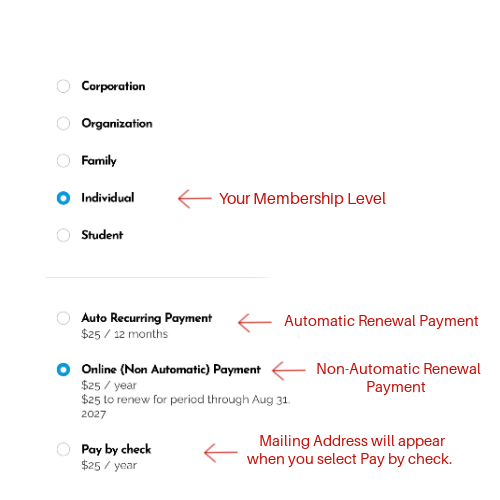
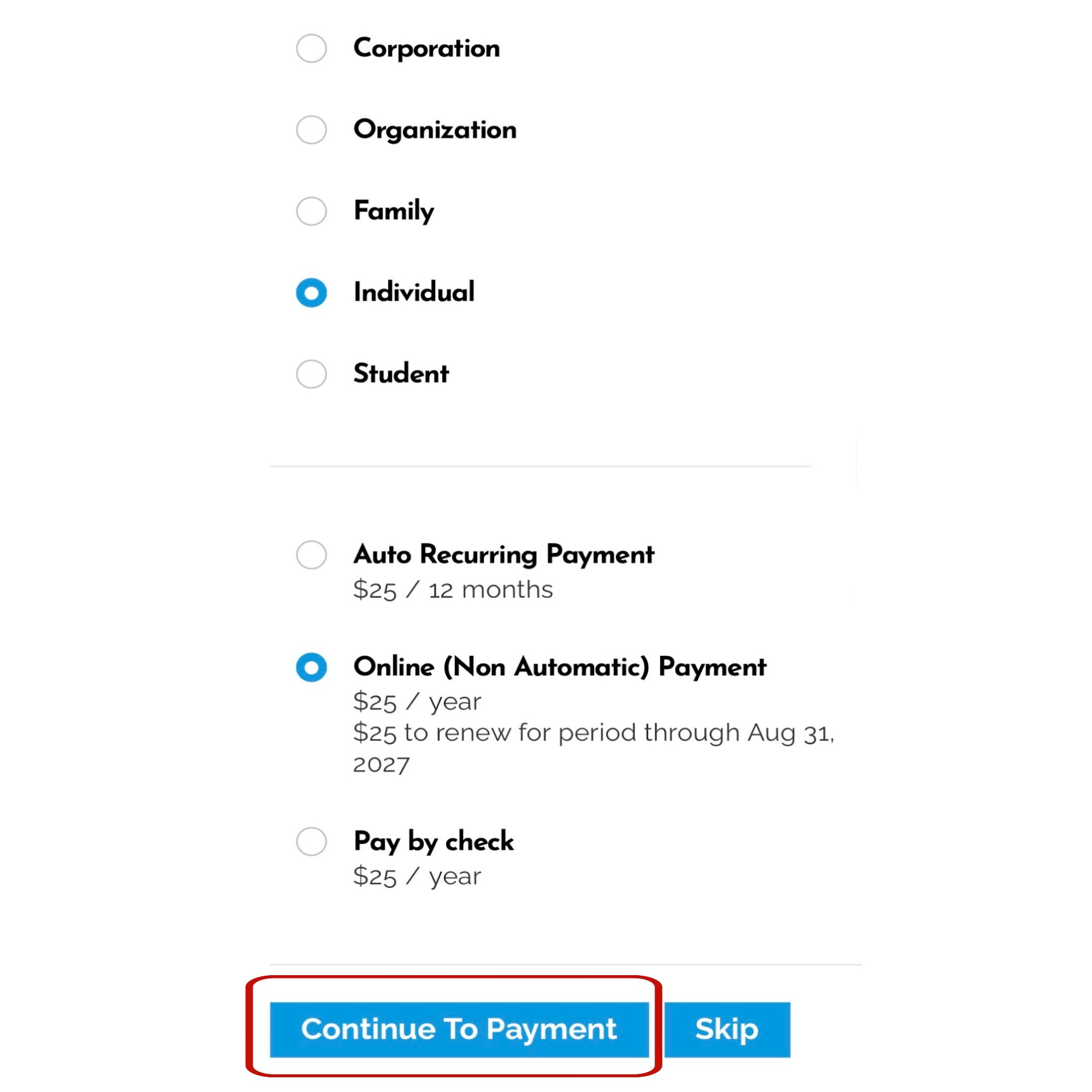
Choose Member Level; What is on file will show as your current level.
You can choose another level, for example: Individual to Family.
Choose how to pay:
a. Auto Recurring Payment
b. Online (Non-Automatic) Payment
c. Pay by check
Step - 3
If you choose Automatic or Online, the process is the same.
a. Automatic annual payment - Your card info will be saved and automatically renew.
b. Online (Non Automatic Payment). You sign-in to Renew and pay.
Click on “Continue to Payment”.
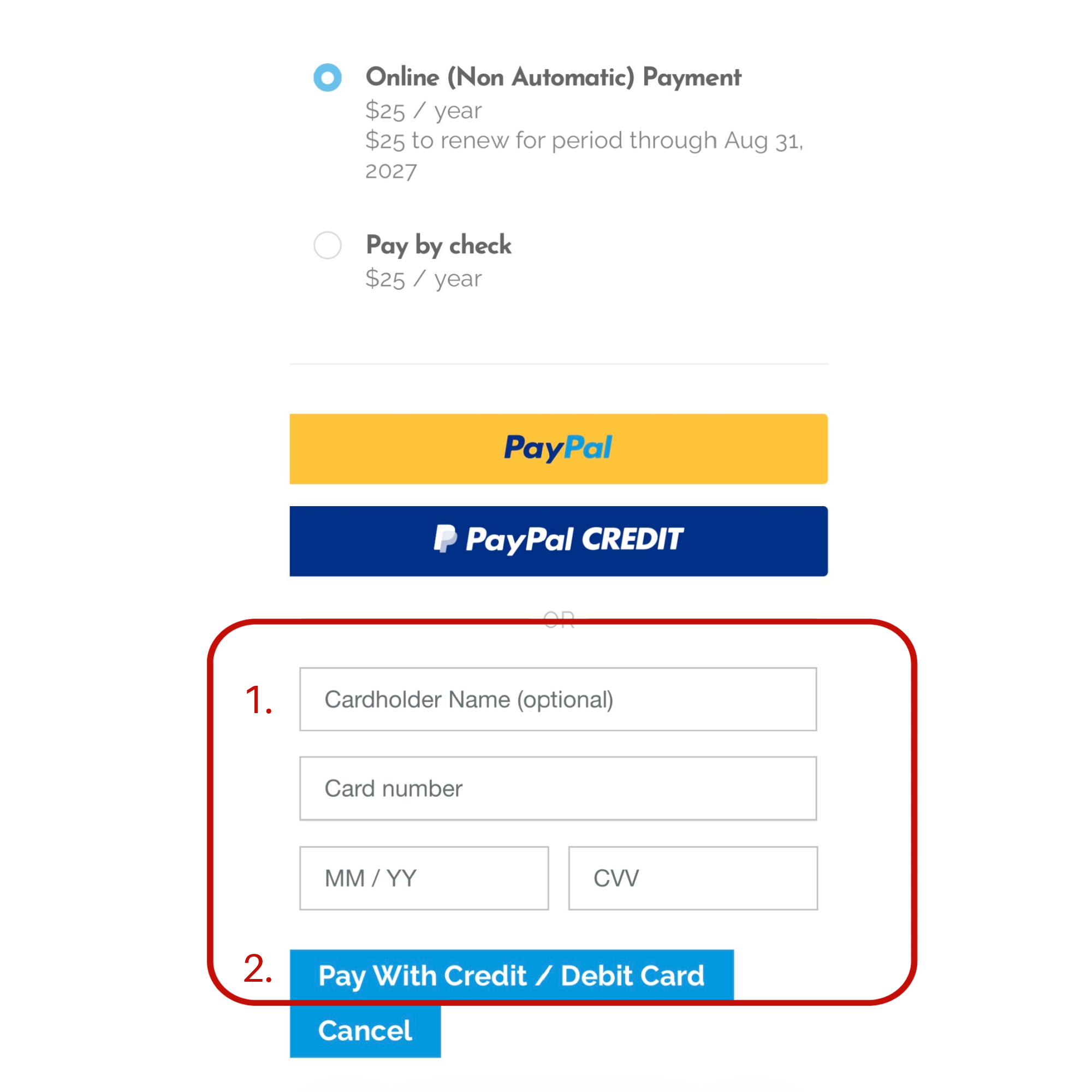
If paying with Credit or Debit,
1. Fill in card information
2. Select “Pay with Credit/Debit Card
If paying with PayPal or PayPal Credit, select and follow prompts.
A Confirmation email will be sent.
Step - 4
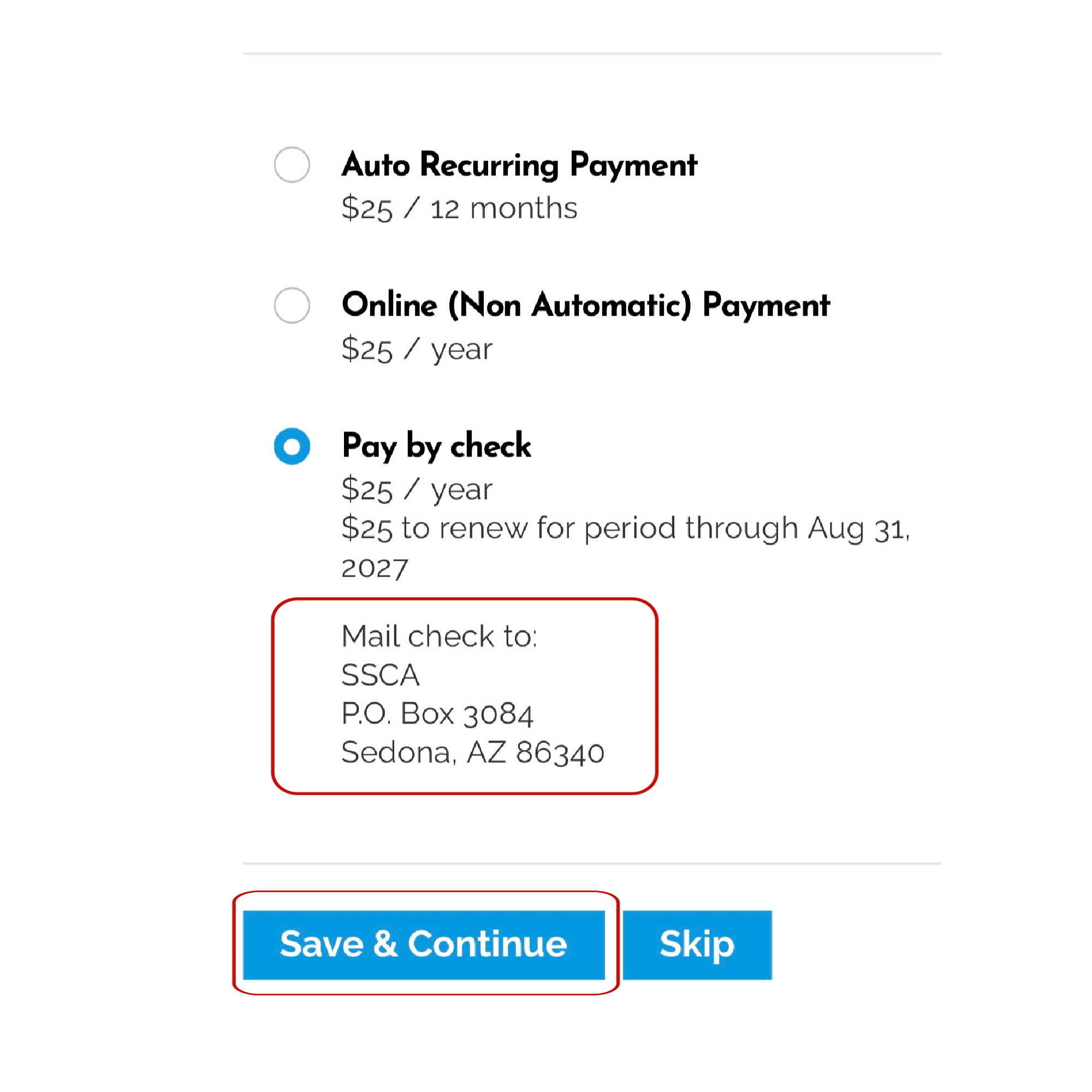
If you choose to Pay By Check
The SSCA mail address will appear when you select “Pay by check”. Write the address where you can easily refer to it.
Your payment will be posted upon receipt of check.
Please write “Membership Renewal” on the description line of your paycheck.
Select “Save & Continue”
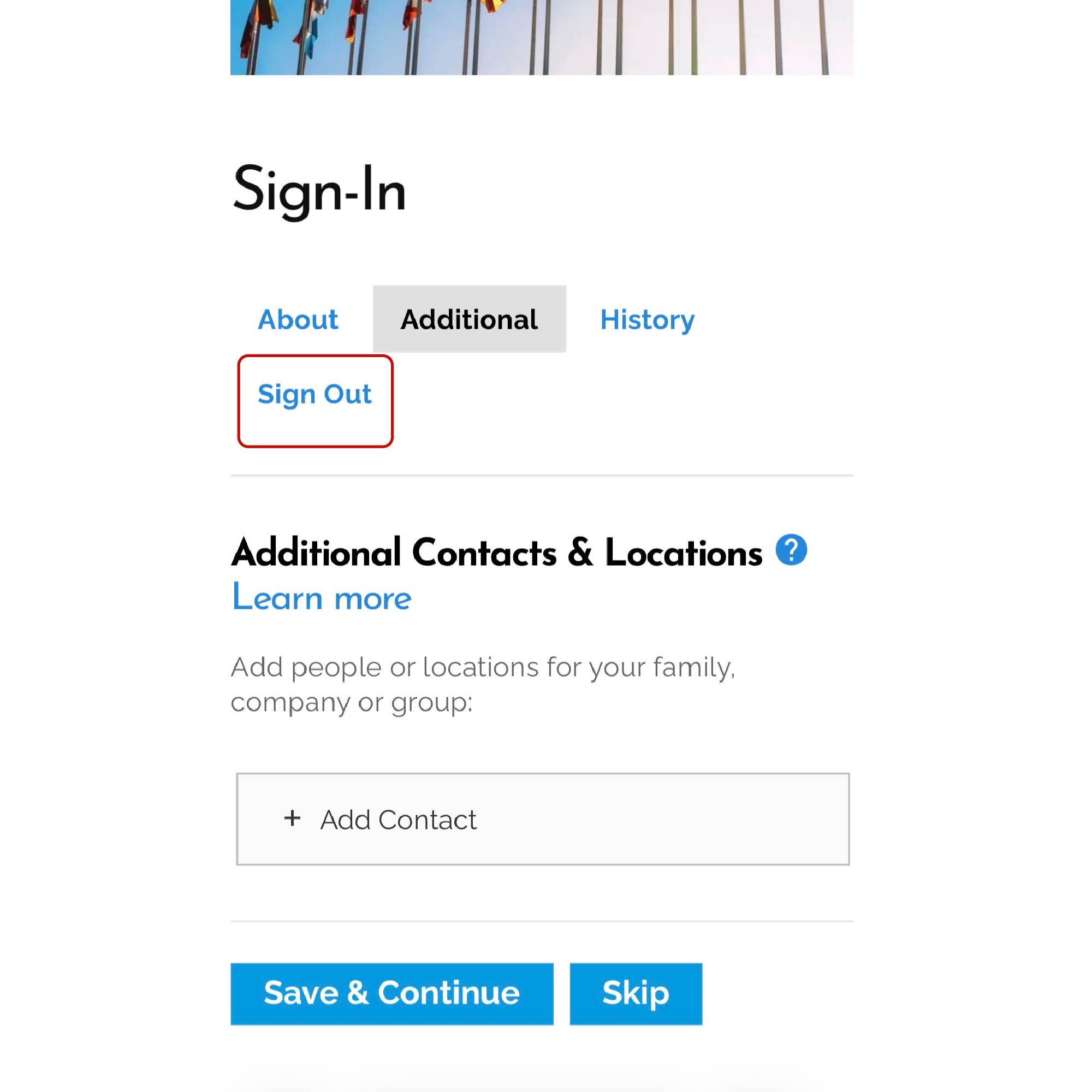
To exit after making a payment, scroll up to “About, Additional, History and Sign out” and select “Sign Out”.
Step - 5